How do I add a ticker to my signature in Opera Mail?
You can use HTML to add the ticker to your Opera Mail signatures.On Daisypath:- Create your ticker.
- Click on the Email tab, and then the Opera link below the preview image to display the HTML code snippet for your ticker.
- Click in the code snippet box to select the code snippet
- Right click and choose Copy to copy the code snippet to your clipboard.
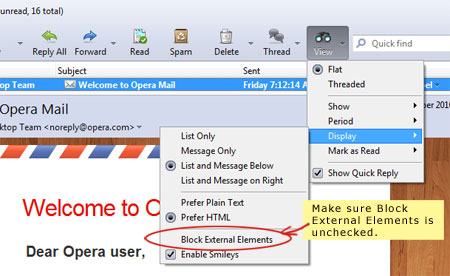
- To allow external elements like the ticker image to be displayed, go to View in the mail toolbar, click on Display and then make sure Block External elements is unchecked.
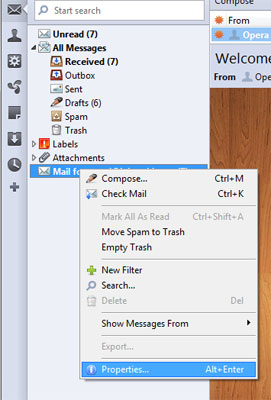
- Right click on your mail account, click on Properties
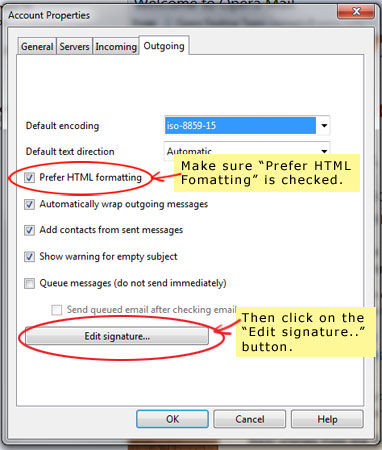
- Click on the Outgoing tab. Make sure Prefer HTML formatting is checked. Then click on the Edit signature.. button near the bottom.
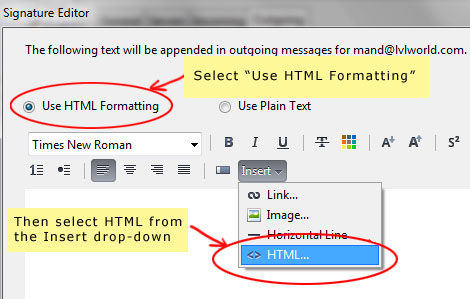
- Make sure Use HTML Formatting is checked. Click on Insert and then click on <> HTML.
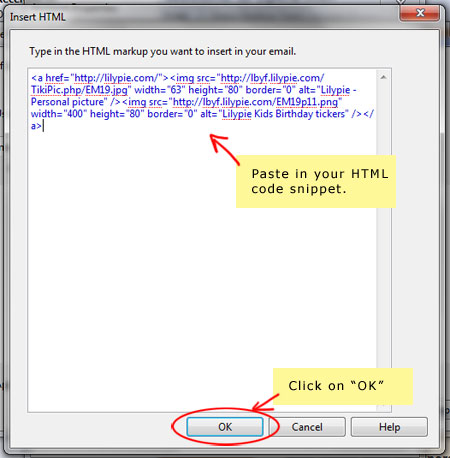
- Paste in a copy of the ticker HTML from Daisypath. Click on OK.
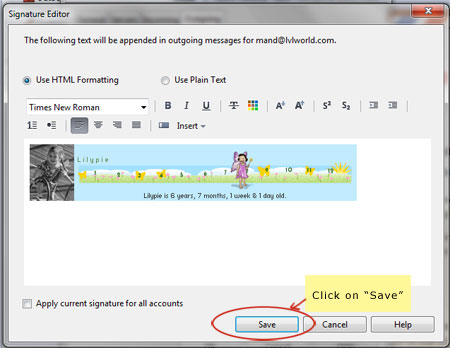
- Your ticker should now display in the Signature Editor window. Click on Save and you are done.